Firebolt
Overview
Firebolt is a cloud native data warehouse focused on large scale analytic activities. See https://firebolt.io for more information. Several useful links for querying and handling semi-structured data are listed below.
https://docs.firebolt.io/working-with-semi-structured-data/working-with-semi-structured-data.html
https://docs.firebolt.io/working-with-semi-structured-data/mapping-json-to-table.html
https://www.firebolt.io/blog/a-primer-on-analyzing-semi-structured-data-part-1
https://www.firebolt.io/blog/a-primer-on-analyzing-semi-structured-data-part-2
Query Interaction
Overview
Qarbine supports direct, native Firebolt SQL queries plus some extensions to better interact with the semi-structured data as well. Remember that Firebolt column names are lower cased.
Using Qarbine Pragmas
The Qarbine query definition can include special Qarbine pragmas to manipulate answer set rows. This manipulation is sometimes wanted due to the various data storage choices and semi-structured data storage strategies Firebolt supports. The “Data Source Designer” document provides full details on pragmas such as those listed below. An example of applying pragmas to Firebolt queries is discussed below as well.
| Pragma | **** |
|---|---|
| convertToDate | Provide a CSV list of fields to convert from values to dates. The values can be strings or numerics to “new Date(...)”. The convert keywords accept field paths of up to 2 levels. The first level can be a document or an array of documents. This is done in-place. |
| convertToNumber | Provide a CSV list of fields to convert from values to dates. The values can be strings or numerics to “Number(...)”. This is done in-place. |
| convertToObject | Provide a CSV list of fields to convert strings to JSON objects via JSON.parse(someString). This is done in-place. |
| convertToObjects | Provide a CSV list of ARRAY fields to convert their element strings to JSON objects via JSON.parse(someString). This is done in-place. |
| mergeFields | There are 3 arguments for each action: key, value, and destination fields. You can have as many triplets per line as you would like and you can have several lines with this pragma. The key and value fields of the row are arrays. They are used to create a new object. That object is then saved into the target field of the result row. If the destination field is ‘row’, then the fields are assigned to the row with no intermediate field. The line #pragma mergeFields keys, values, name with this record "keys" : ["first", "last"], "values": ["tom", "jones"] results in the object name { first: "tom", last” : "jones"} |
| mergeArrays | Provide a CSV list of field names with the last being the field to receive the merged field values. Each of the source fields is an array and they all have the same number of values. The line #pragma mergeArrays solist_names, soloist_role, soloist_instruments, soloists with this record { "solist_names": [ "Otto, Antoinette", "Timm, Henry C." ], "soloist_role": [ "S", "A" ], "soloist_instruments": [ "Soprano", "Piano" ],} results in "soloists": [ { "solist_name": "Otto, Antoinette", "soloist_role": "S", "soloist_instrument": "Soprano" }, { "solist_name": "Timm, Henry C.", "soloist_role": "A", "soloist_instrument": "Piano" } ] |
Qarbine can natively query Firebolt and obtain complex JSON records such as shown below.
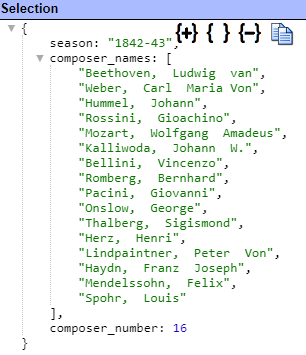
Qarbine can easily analyze this deeply nested data and format an analysis report. This interaction can also be embedded into applications for a seamless end user experience. Sample output is shown below.
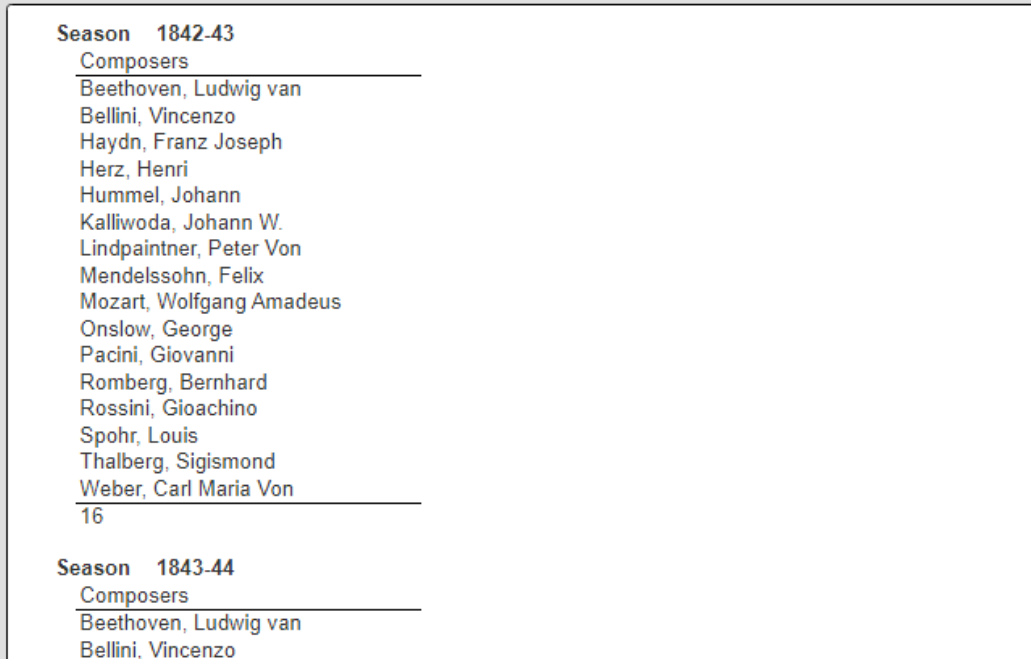
This report result can then be exported into various popular formats and easily shared within leading collaboration tools.
Defining a Data Source
Overview
A Data Source is a Qarbine component responsible for retrieving data from somewhere. At a high level it has a name, a description and some arbitrary query string which when sent to the associated Qarbine Data Service endpoint returns some data. The overall execution flow for an analysis, including the optional prompt component, is shown below.

A single data source can be referenced by name from multiple Qarbine template components. This enables a single point of change when perhaps, an index is added, or some other query tweak is necessary. The alternative is to attempt to find all templates impacted by a schema or index change for example. This component reusability is especially beneficial when team members have varying roles and skills.
Query Language
Qarbine supports direct, native Firebolt SQL queries plus some extensions to handle the semi-structured data values as well. There are several other object manipulation functions available from within Qarbine analysis templates. Remember that Firebolt column names are lower cased. In general only SELECT queries and SHOW commands should be run as the account used by Qarbine should only have read access. For more details see https://docs.firebolt.io/sql-reference/commands/.
Managing Answer Set Size
The default maximum number of rows starts off at 25 for a new data source. This is useful to evolve a query from a concept to one that you have verified returns the desired answer set. As noted, any native way of limiting an answer set size is the preferred approach. This setting is in the component dialog as shown below and also accessible by clicking the ‘Gear’ icon.
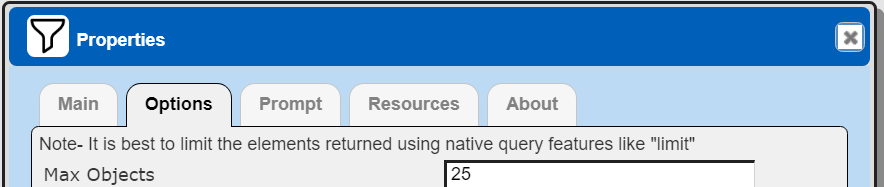
Once you are done drafting you can adjust this parameter. A “0” indicates there is no maximum. A number greater than 0 indicates to limit the final answer set size to that number of rows. This answer set truncation comes after any native query limit. So, if the answer set from the data endpoint is quite large, that content has to be returned to the Qarbine host. It then may truncate the number of rows. It is best to truncate at the query level (i.e., use a limit) to reduce the content sent from the data endpoint to the Qarbine host in the first place.
Adjusting the Maximum Rows
Recall the default maximum rows at the component level is 25. When you are satisfied with your query you can change that setting by clicking.

Adjust the setting to “0” indicating no Qarbine answer set truncation.

Click

Example
Using the tutorial and associate sample data from
below is a query to extract all conductors' names per season into an array
WITH programs AS (
SELECT JSON_EXTRACT_ARRAY_RAW(raw_data, 'programs') AS programs_arrays
    FROM ex_nyc_phil
), works AS (
SELECT
        JSON_EXTRACT(program, 'season', 'TEXT') AS season,
        JSON_EXTRACT_ARRAY_RAW(program, 'works') as works_array
    FROM programs
        UNNEST(programs_arrays AS program)
)
SELECT
    season,
    ARRAY_DISTINCT(NEST(JSON_EXTRACT(work, 'composerName', 'TEXT'))) as composer_names,
    ARRAY_UNIQ(NEST(JSON_EXTRACT(work, 'composerName', 'TEXT'))) as composer_number
FROM works
    UNNEST(works_array AS work)
GROUP BY ALL
ORDER BY season
Sample results are shown below.

Selecting one of the rows

shows its detail on the right side of the window.
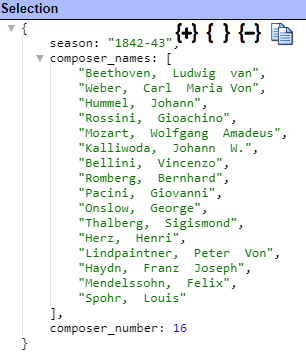
Notice the ARRAY value is available in Qarbine as a natural list of strings. In a legacy SQL tool you would have JSON string values that would have to be handled by code on the client side. Firebolt provides functions such as UNNEST which can expand a single row such as shown above into a row for each composer name. This can be done across multiple ARRAY columns, but the cartesian product of all those expansions is very expensive on both the server side and the client side. Plus, the end user has to somehow deal with the insane expansion as well. In contrast, Qarbine will provide a single row back to the user with the lists in a very natural form which is very easy to analyze and present.
The query above can be saved in the Qarbine catalog as a Data Source and be run by itself or referenced by other components.

Using Pragmas on Semi-structured Data
Firebolt provides a wide variety of functions to store and interact with semi-structured data. You may have a mix of primitive values and semi-structured data some of which may even be redundant. The following sample row is from the discussion found at this link
Shown below is a single row from the query ‘select * from visits”. Per Firebolt recommendations, the user_agent map has been segregated into a column for the field names and another for the values. The events data is stored as a list with varying properties across the elements. Interacting with the data in this form can be very confusing so Qarbine pragmas can be used to form a more natural data structure to be interacted with by a Qarbine analysis template.
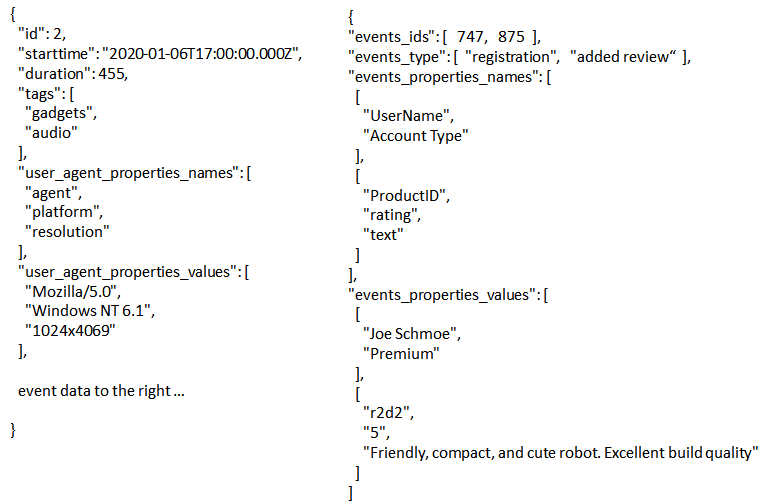
This single line
#pragma mergeFields user_agent_properties_names,
user_agent_properties_values, user_agent
creates a field named user_agent which will be a map of keys and values.

Consider that the user agent properties are generally well known keys and values. Rather than having confusing code to grab a property name from user_agent_properties_names list and a corresponding value from user_agent_properties_values list, we can use simple Qarbine formulas like “= #agent” and “#platform” to refer to the fields. Qarbine formulas are similar to Microsoft Excel formulas and can refer to data field values using the ‘#fieldName’ notation.
The events data is much more complex to handle in the data structure above with values spread out over 4 answer set columns. To cleanup the events list we first merge the ID and type value lists to form a new list field using this line
Shown below is the result of that pragma.

The events list can now easily be iterated over within a Qarbine analysis template. Next we will add the dynamic list properties using this line
#pragma addArrays events_properties_names, events_properties_values, events
Shown below is the result of that additional pragma.

The resulting query text is shown below.

The result object has a much more natural structure and can be easily interacted with by the analysis template.

For considerations in semi-structured data modelling with Firebolt see this link
Defining an Analysis Template
Overview
A template defines how to process the data being retrieved from Data Source queries and other data expressions. It also defines formulas, formatting options, and other analysis and presentation options. The overall execution flow for an analysis, including the optional prompt component, is shown below

Example
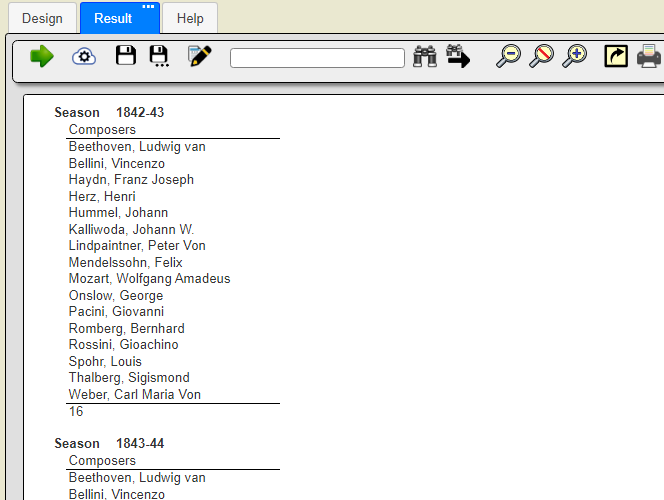
In this short example we will create a simple template to present the data from the data source above. Start by opening the Template Designer. For reference, below is the resulting report to be produced from the template.
First, associate the Data Source with the Template.
Click

Enter a name

Choose the data source by clicking the recents button

Select the component

Click

The result is

Toward the bottom name the main data variable as shown below.

Close the property dialog by clicking
The right hand side of the Template Designer will show any meta data about the data source data. This starting example has a very simple structure. (There must be no cell chosen in the grid area for this to appear).

The group header displays the season and a heading for the composers. It initially looks like this.

The first line has these cells.

Bold each of the cells by selecting it and clicking

The second line has these cells.

Underline the heading by selecting it and clicking the bottom border on the right of the window.

Since the composers field is a list of names, we will feed those values into the body line.
On the left hand side, select one of the group’s lines, right click, and choose the option shown.

Adjust the middle of the dialog as shown below.

This formula first sorts the names. The names list will be iterated through the body section. In this case the elements are simple strings, but more complex objects are just fine too.
Close the dialog by clicking
 .
.
The body section just has one line as shown below.

The group summary line has this cell.

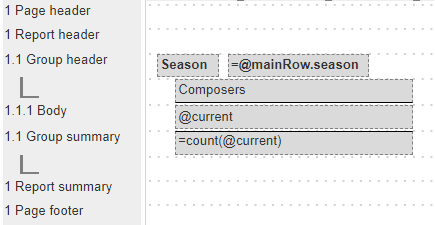
The overall structure of the template is shown below.
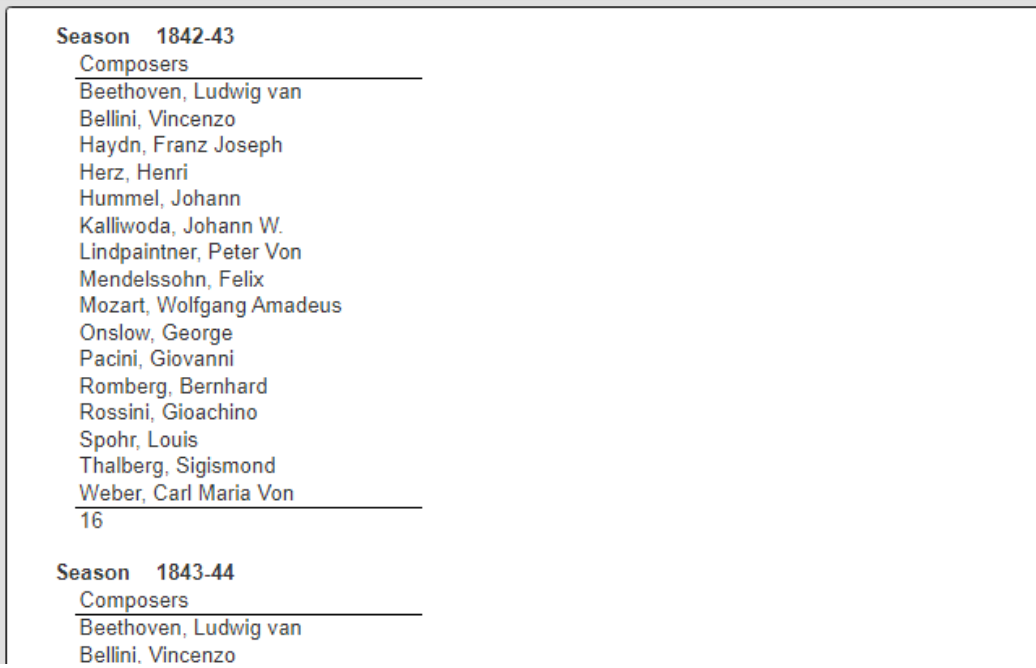
Run the template as it is defined by clicking

The data source will run and feed its rows into the template. A result is shown below.
Save the template by clicking

Runtime Prompt Integration
Overview
Qarbine prompts provide a convenient way to obtain runtime values and variables for data source and template execution. To avoid hardcoding, prompts can use macro formulas to run queries which populate list widgets. Prompts are defined in a no code manner using the Prompt Designer. Shown below is the execution flow when there is a Prompt component.

The Prompt Designer supports a large variety of input widgets including entry fields, check boxes, radio button groups, sliders, and file input.
Example
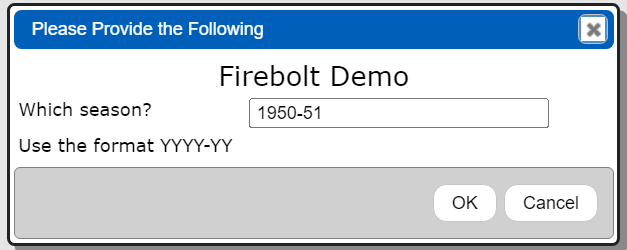
One possible use would be to prompt for which season to use for an analysis run. A sample is shown below.

Open the Prompt Designer. This can be used to prompt for multiple values. The Prompt Designer provides a large variety of widgets to choose from in a no-code fashion to create dialog prompts. This Prompt has 3 elements (a heading, entry field, and a label) as shown below.

The high level properties of the entry field are shown below.

The high level properties of the label are shown below.

To run the prompt click
Enter a value
Click

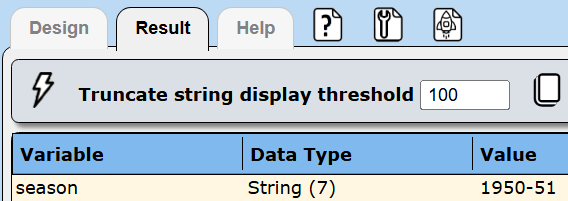
The results are shown below.
Using the Prompt
A prompt can be referenced by any data source and template. For greater flexibility, we can adjust the previously defined data source to use the season value. The new query specification is shown below.
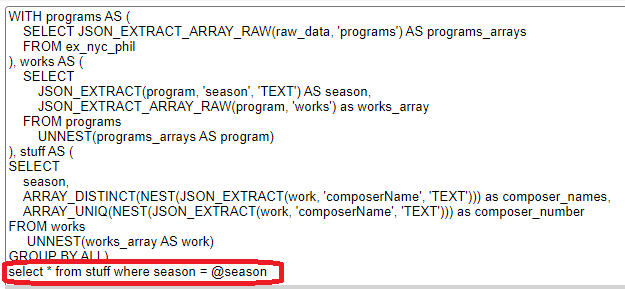
The @season text will be replaced with the prompted value.
This new Data Source can be saved with the name shown below.

Save the data source WITH A NEW NAME by clicking  .
.
You can associate the prompt directly with the Data Source.
Open the data source. In the properties dialog adjust it to use the prompt.
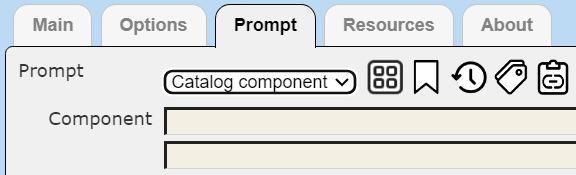
Usually the fastest way to choose the prompt is to click the recents button  .
.

Click

The association will be set.
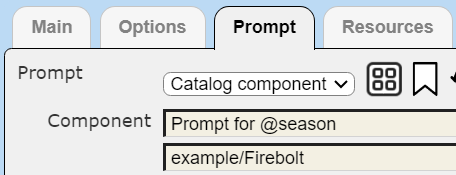
The prompt chosen sets the ‘season’ variable based on the user’s selection.
Save the data source by clicking
Click to run the query which first prompts for the season value.

Click
That value is filled into the data source’s query placeholder and sent to Firebolt. The answer set is then returned.

More Complex Data Template Example
Firebolt provides a mixture of traditional SQL data handling with a variety of semi--structured data features. In a section above the use of pragmas was discussed to manipulate semi-structured data into a more natural application object. The resulting object is shown again below.
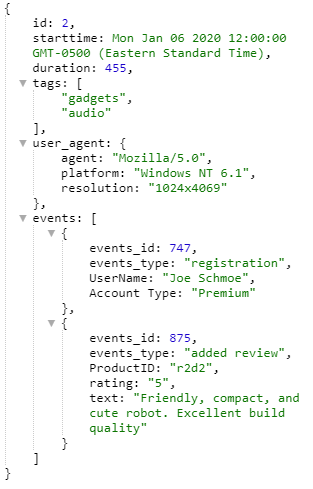
Note that in this object:
- the tags are a list,
- the user agent is an embedded object and
- the event is a list of complex objects. The properties of those objects varies based on the event type as well and the analysis has to handle this reality.
Below is a sample result report accomplished without any custom coding, flattening or dealing with numerus other legacy SQL centric tool handicaps.
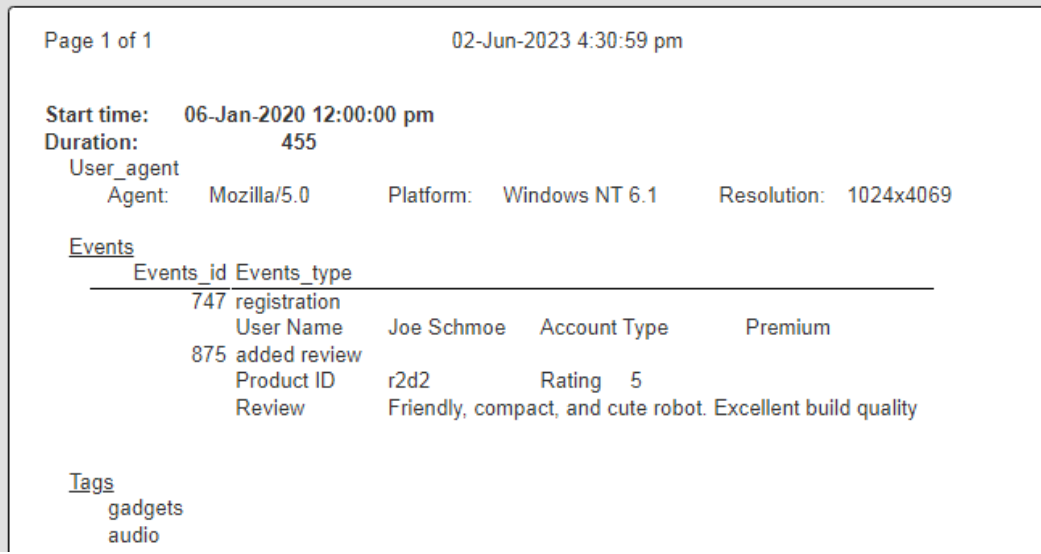
Qarbine provides over 450 macro functions and a wealth of formatting features. Iterating over objects of any shape is naturally handled.
The template layout is shown below.
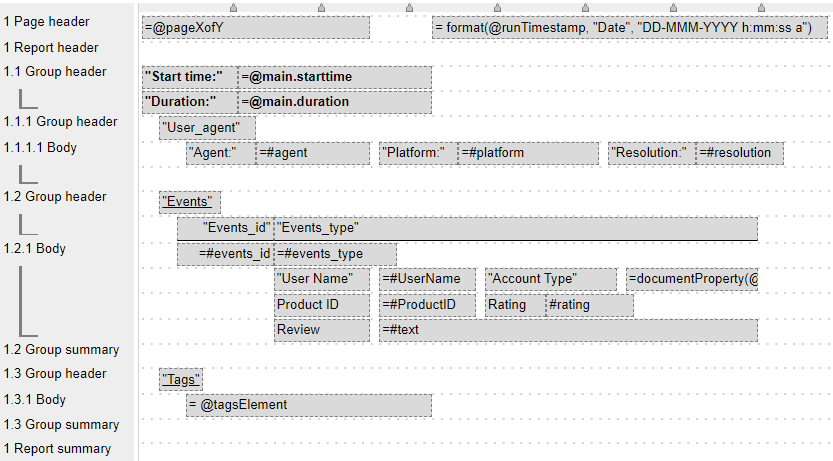
It is stored in the catalog’s Example/Firebolt folder. The main element variable is “main”.

. . .

Group 1.1.1 handles the user agent object fields.

Group 1.2 iterates over the events list.

The group’s 2nd line is conditional.

The group’s 3rd and 4th lines are both conditional and the ‘#text’ cell is word wrapped.

Group 1.3 iterates over the tags list.

The multiple groups are used to iterate over the embedded objects and arrays and an easy to understand manner.
Troubleshooting
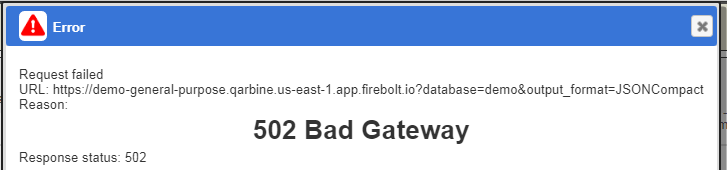
In general any Firebolt error messages propagate back to the front end as-is.
Note that Firebolt has an auto shutdown option based on inactivity. In the Data Source Designer for example, if the engine is not running you may see the following.

Another error that may be seen is shown below.
Next Steps
Accessing Your Database
To configure access to your database see the guides at
http://doc.qarbine.com/docs/category/data-service-configuration
Querying Your Database
For database specific interaction guides navigate to
http://doc.qarbine.com/docs/category/data-source-designer
References
For more information see https://docs.firebolt.io/.